Quick Settings is the panel you pull down from the top of the screen. In Resurrected Remix it comes in thirteen looks, and every one is only a starting point: open edit mode with the pencil and change it while the real panel updates behind the editor.
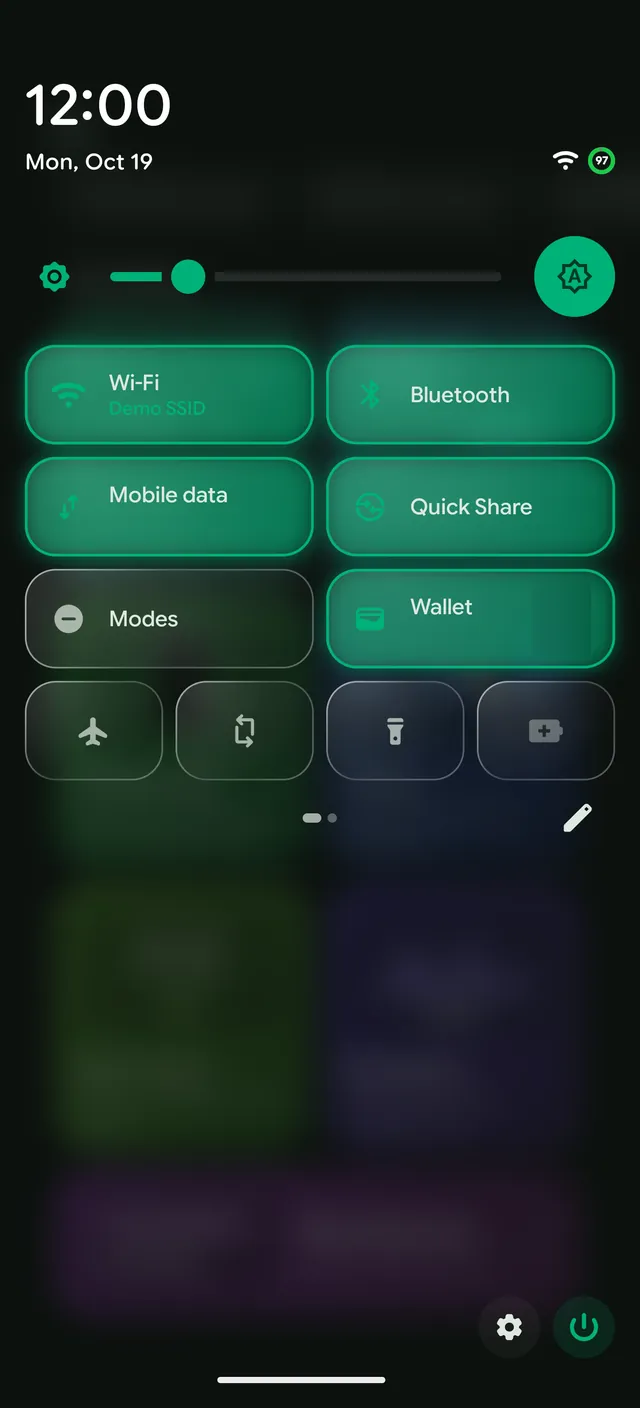
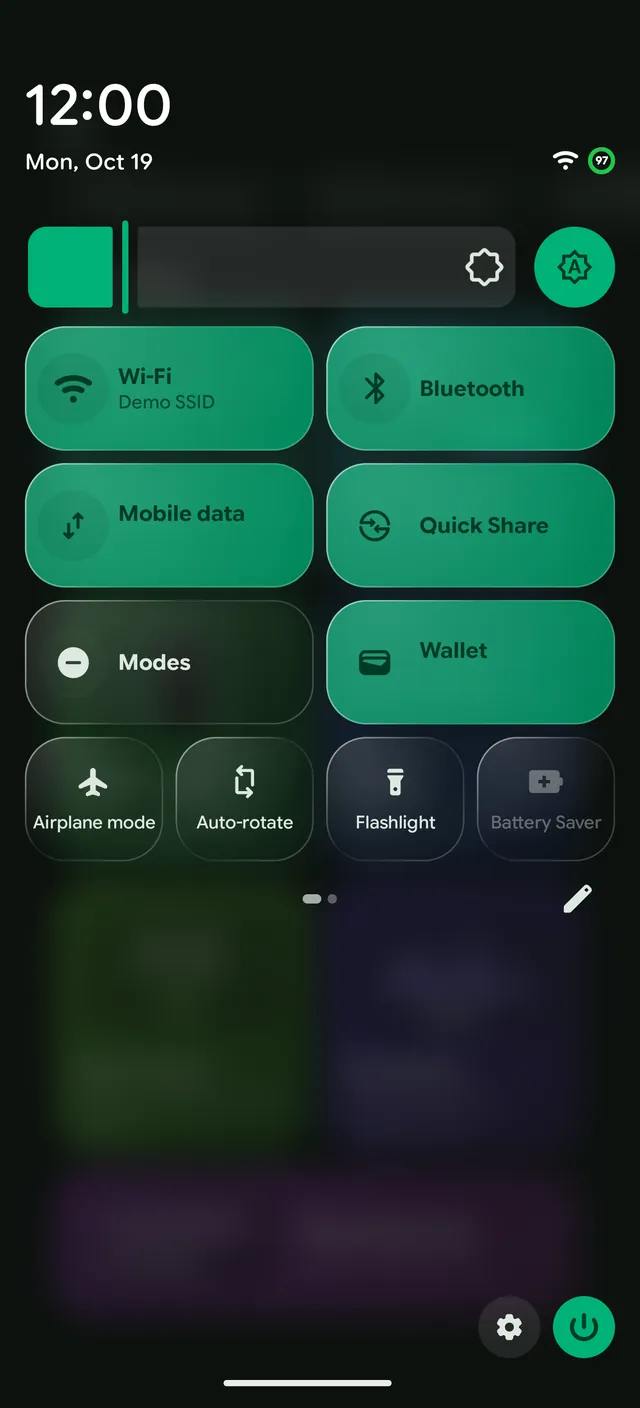
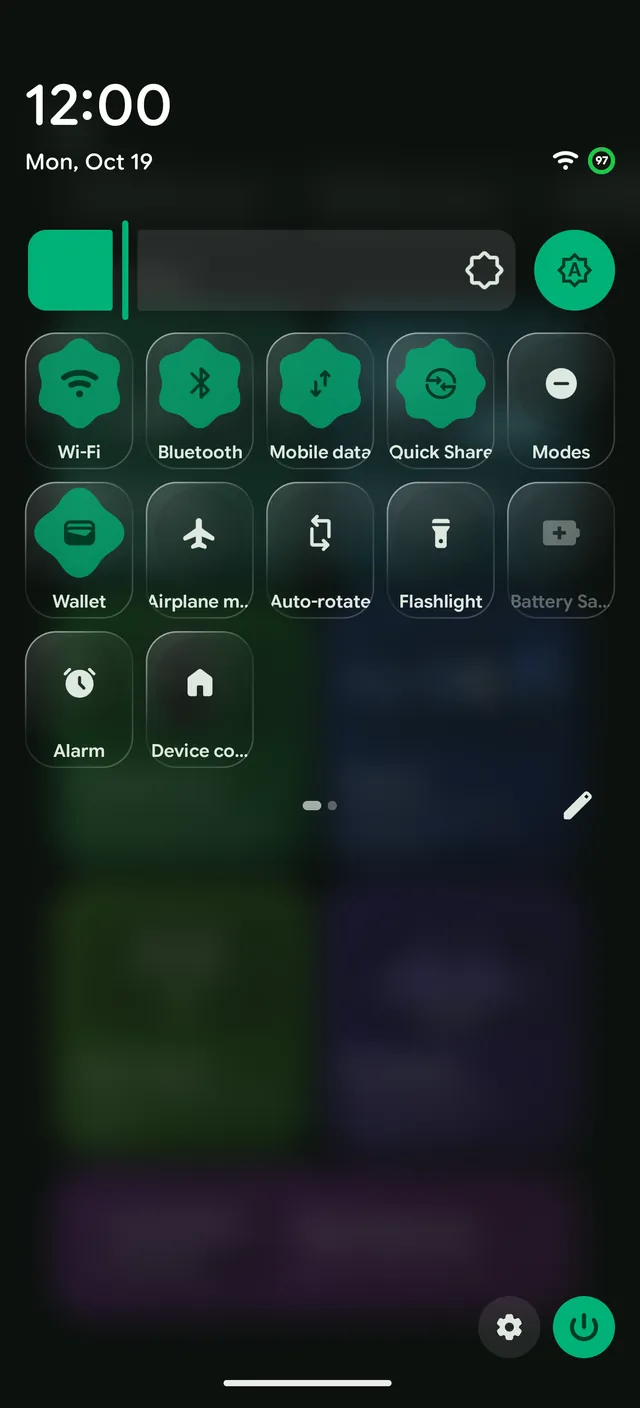
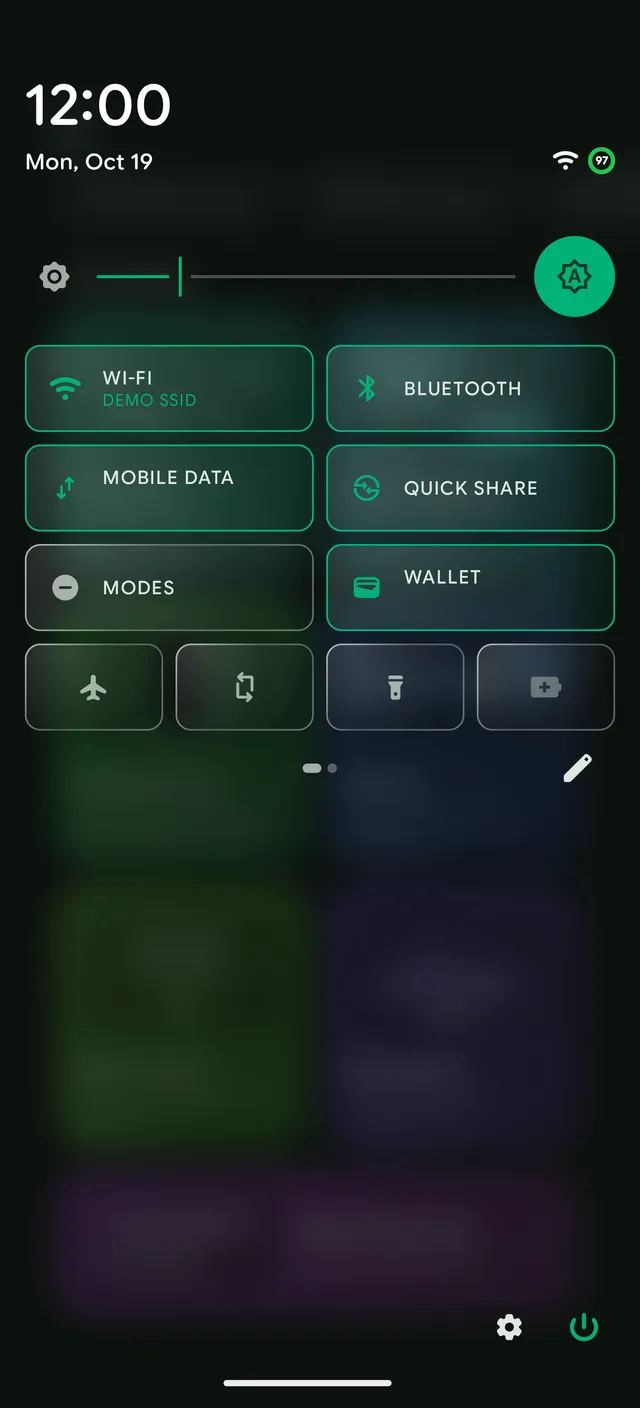
The looks
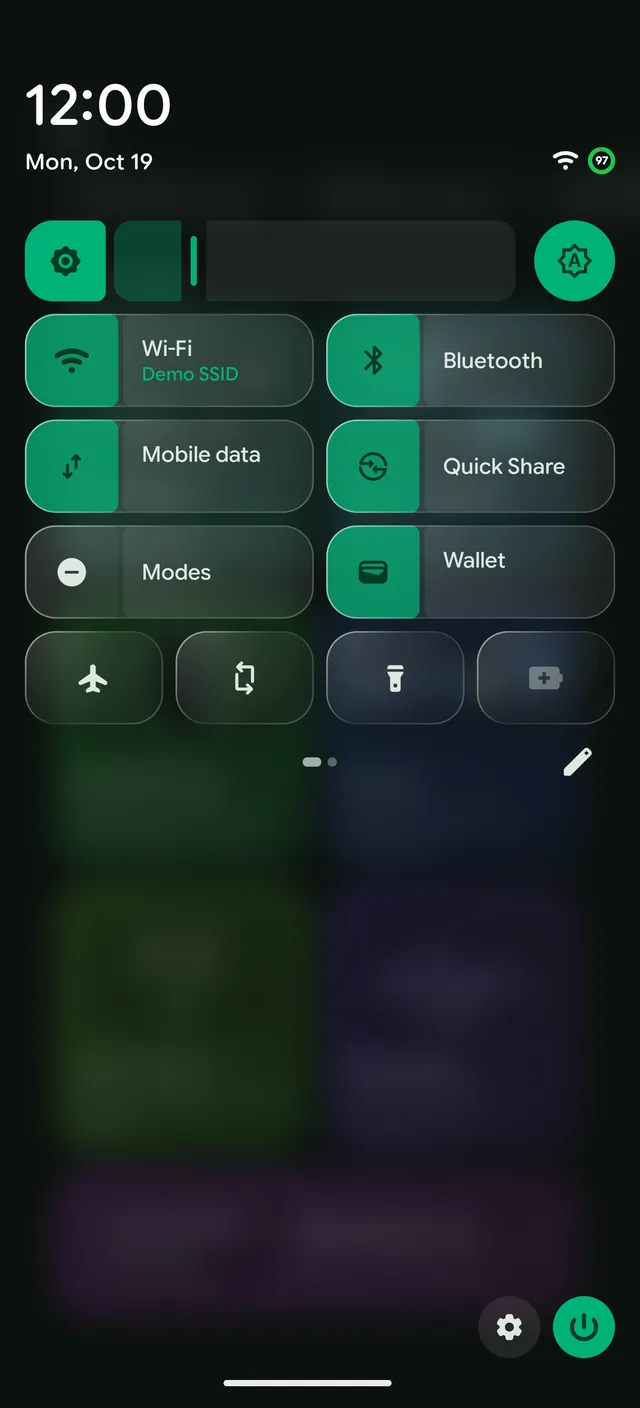
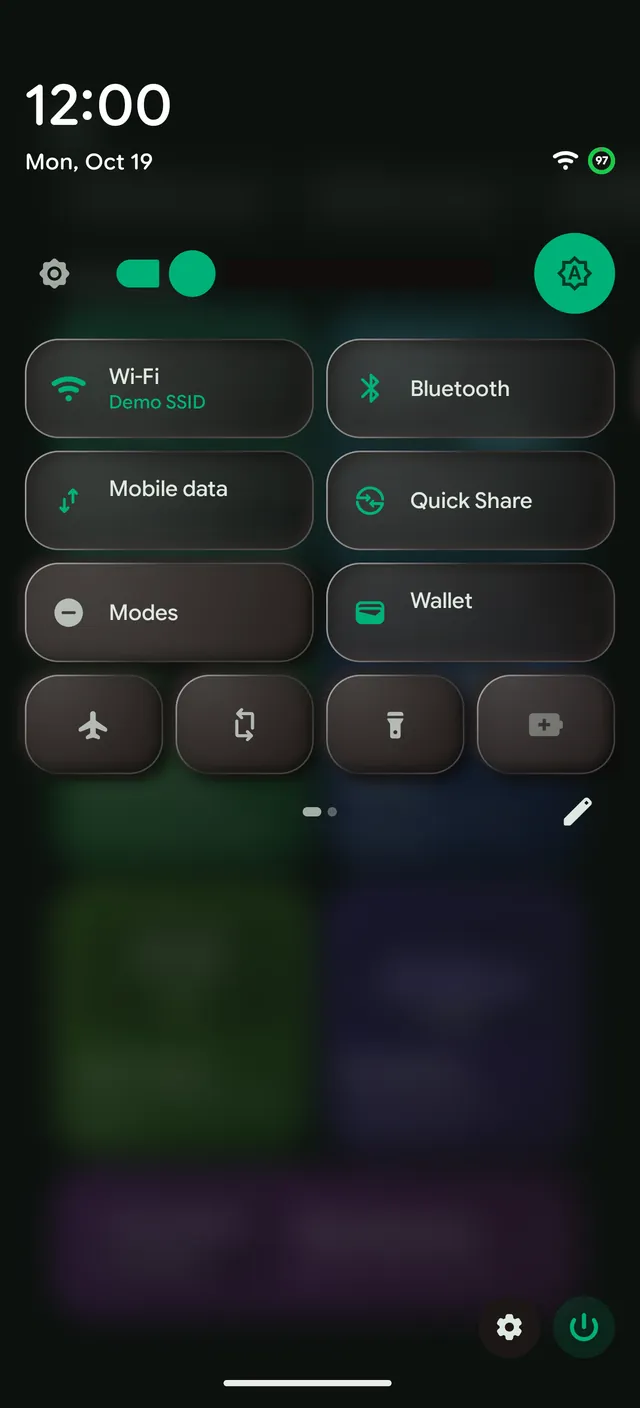
- Neon. Outlined tiles that glow in your accent when they're on.
- Bento. Big rounded blocks filled with your accent.
- Shapes. Round toggles that grow lobes when they're on.
- Blueprint. Hairline outlines and monospace caps.
- Duo. Split tiles where the icon half lights up.
- Soft. Raised tiles that press in when they're on.
Seven more looks make up the thirteen, including the stock Android one.
The customizer
Edit mode has six tabs, and every change shows on the panel right away.
- Theme. Start from any of the thirteen looks, save your changes as your own theme and share it as a code. Paste a code from someone else to get theirs.
- Layout. Columns, rows on a page, tile height and spacing, or scroll instead of pages. Tiles can be any size up to 2 by 2, all long, all icons or a mix.
- Tiles. Pill or corners, the label inside or under, circle, rounded or blob icon backings, a second line, the icon size, and Sans, Mono or Caps text.
- Color. How tiles look on and off, from a solid fill, gradient or tint to an outline or the icon alone, with a glow when on and a flat or raised finish.
- Mix. Take each part from a different look: the tile shape from one, the colors, slider, media player or footer buttons from another.
- Slider. The brightness slider's look, and whether it sits at the top, under the tiles or next to the player.
Sliders in the grid
Brightness, Volume and Sound mode can be tiles of their own, right in the grid. Drag the Volume tile sideways to set the volume; it follows whatever is playing, so it controls the speaker, your headphones or a Bluetooth device. Tap a slider's icon to mute, and set the level from the bar. The Media tile is your music player, with its own options. Slider tiles take the theme's colors, Liquid Glass and an optional percent.
Header images
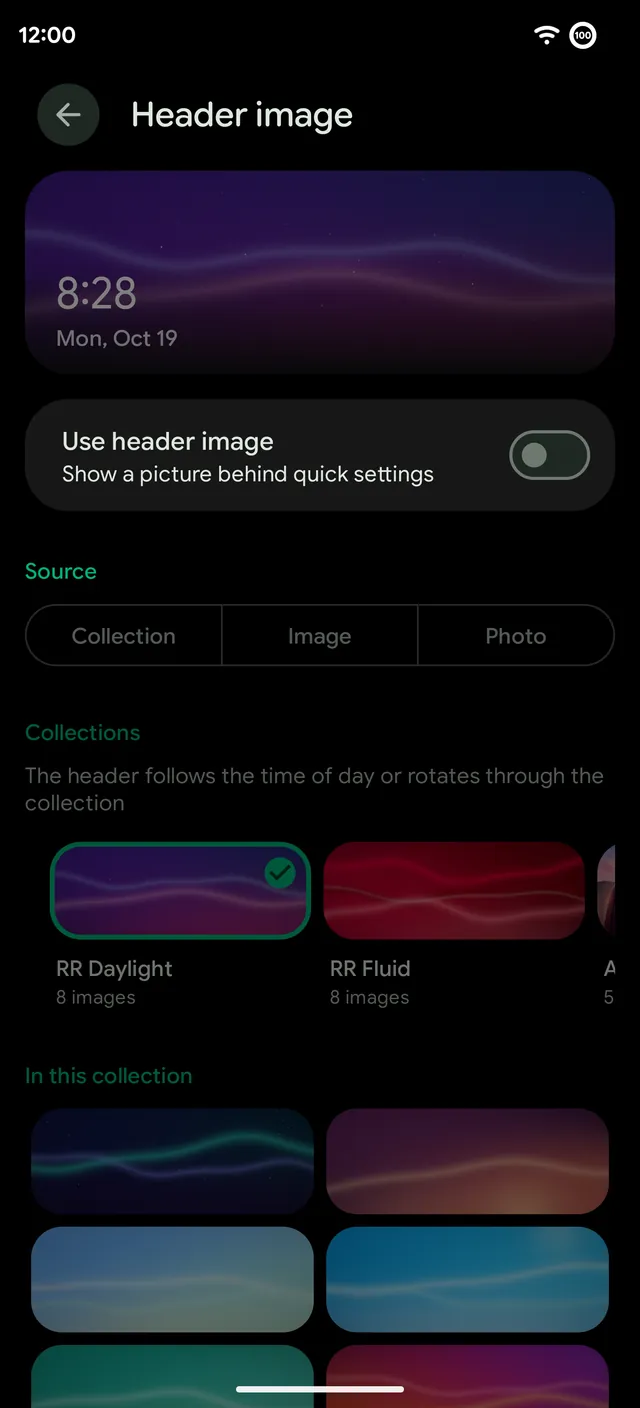
Put a picture behind Quick Settings. Pick one of RR's collections, like RR Daylight or RR Fluid, and the header follows the time of day or rotates through the set. You can also use any single image or one of your own photos.
Tips
- Long-press a tile to open its settings, as on stock Android.
- On a dirty flash, your existing tiles stay where they were. New slider tiles only fill in on a fresh setup.
- Third-party tiles answer the first tap, even with many installed.